Write to columns
Activity Description
Writes a value (variable) to the current, previous, or next column of a given cell
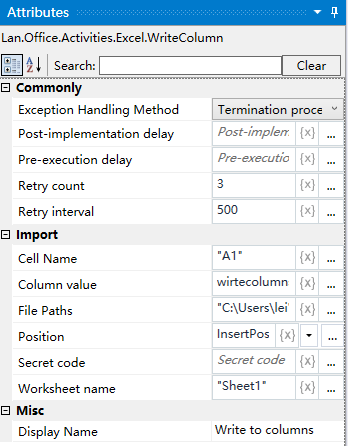
Property Description
Cell name
Enter a cell name to write the column with reference to the cell
worksheet name
Fill in the name of the Excel worksheet, the default is “Sheet1”.
column value
value or variable, if you write the value directly, you need to use a special format, such as: {“111”, “222”}, can also be used as a List type of variable said
Position
drop-down list box, you can select the current column, the previous column or the next column
Full path of the file
Fill in the full path of the Excel file (you can also click the icon to the right of the input box to select the full path of the file)
Example of use
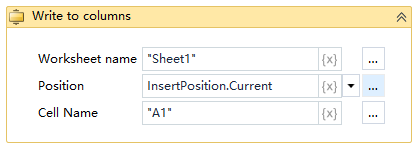
Execution steps: in the Excel table Sheet1 worksheet, starting from A8 to write the current column data ---- view data table changes
Note: To perform the activity, first close the activity needs to be used in the Excel file