Bottom Addition
Activity Description
Write the specified content in the next row of the cell with the value in the Excel worksheet
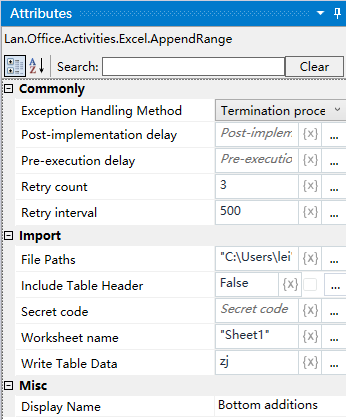
Property Description
Whether to include table header
Choose whether to add header, if you choose “Yes”, the header will be added when writing, such as the first header is “Column_1”; if you choose “No”, the header will not be added when writing, only the content will be written.
Working sheet name
Fill in the Excel worksheet name
Full path of the file
Fill in the full path of the Excel file, you can also click the icon on the right side of the input box to select the full path of the file
Select the table data
Input DataTable type variable, for example: ZJ
Usage Example
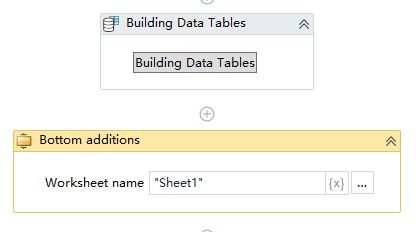
Run Result:
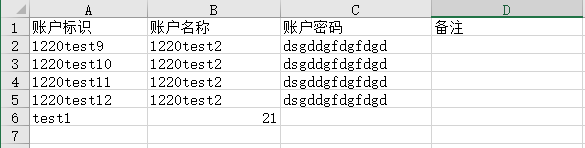
Execution steps: In the specified Excel file, Sheet1 worksheet at the bottom of the append ZJ data table content test1, 21
Note: Write the data table need to choose the data table already exists, or to build a new data table with the bottom of the append to use, the implementation of the activity, first of all, to close the activity needs to be used in the Excel file!